How to Set Up a Proxy Server on iPhone A Practical Guide
Learn how to set up a proxy server on iPhone with this guide. We cover manual Wi-Fi setup, PAC files, and third-party apps for flawless mobile proxy use.
Setting up a proxy server on your iPhone does more than just change your IP address; it turns your personal device into a seriously powerful tool for professional work. It lets you control your digital footprint, making it essential for jobs like verifying geo-targeted ads or conducting market research without your real location messing up the results.
Why Bother With a Proxy on Your iPhone?
If you're a media buyer, data analyst, or affiliate marketer, your iPhone is basically your office on the go. A huge part of your job is seeing the internet from different viewpoints—like checking a website as if you're in London, verifying ad placements in Tokyo, or grabbing product data from a competitor's site without getting blocked. For that kind of work, a proxy isn't just nice to have; it's a must.
Without one, every search, click, and page view is tied directly to your physical location. This can lead to skewed data and completely inaccurate campaign checks. Just imagine you’re in New York trying to confirm a mobile ad campaign for a client in Germany. The ad network sees your US-based IP and serves you local ads, making it impossible to see what a real German user would.
Key Takeaway: A proxy acts as a middleman, swapping your iPhone's real IP address for one in the location you need. This guarantees the data you're seeing is genuine and not biased by where you happen to be.
What You Can Do With It
Configuring a proxy on your iPhone opens up a bunch of critical workflows that professionals rely on every day.
- Ad Verification: Make sure your geo-targeted mobile ad campaigns are actually running where they're supposed to be.
- Market Research: Collect unbiased local pricing, search engine results, and consumer trends from any country.
- App Testing: See how an app performs and what the user experience is like from different global locations, all from your phone.
- Content Access: Get around geo-blocks on websites and platforms to see the full picture of a digital market.
This decision tree gives you a quick visual on when a proxy is the right tool for the job.
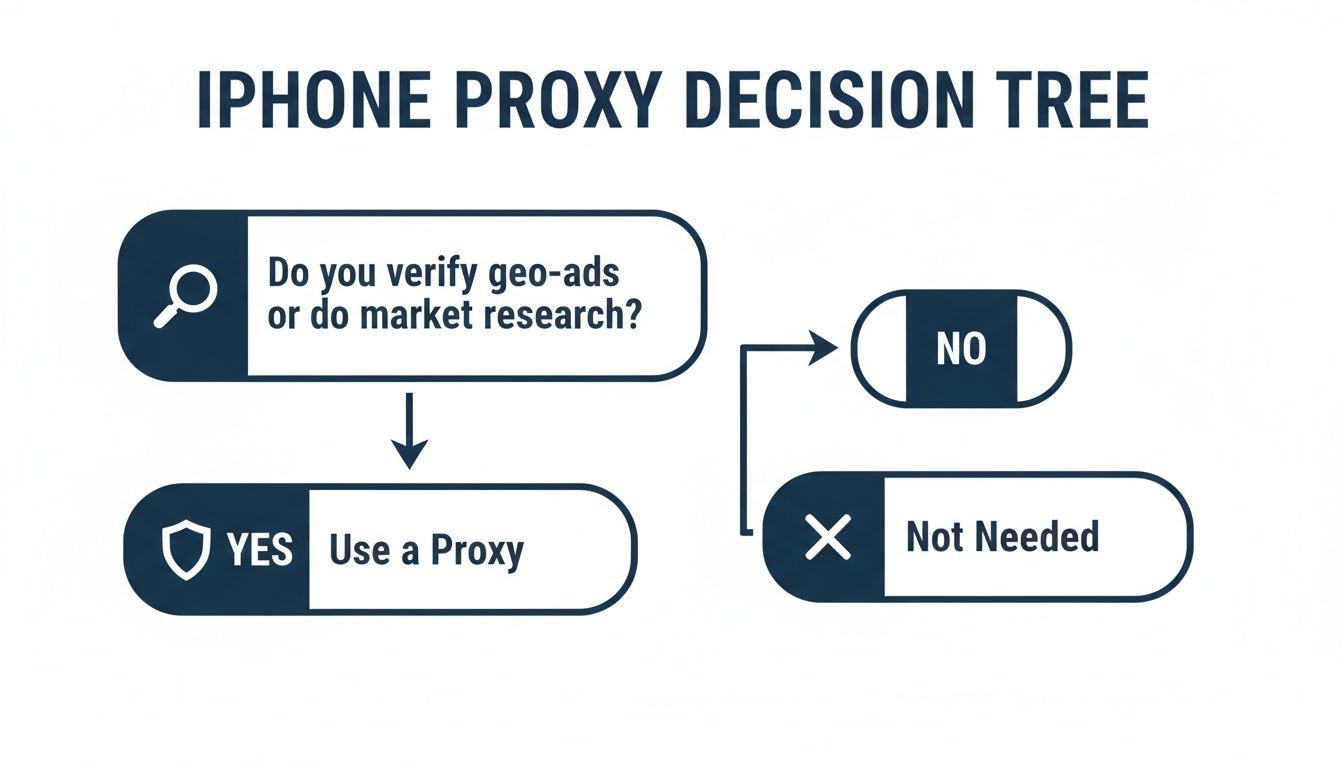
As the chart shows, if you're doing any kind of serious verification or research, a proxy is almost always the answer. The market definitely reflects this trend, with the mobile proxy server market projected to hit USD 982.6 million by 2030. This growth is fueled by more and more professionals using their smartphones for these kinds of business-critical tasks.
Before you jump into the setup, it’s a good idea to understand the key differences between VPN and proxy to know you're picking the right tool. And if you want a deeper dive into what's out there, our guide on the different https://proxypurpose.io/blogs/types-of-proxy-servers is a great place to start.
Setting Up a Proxy Manually Through Your Wi-Fi Settings
<iframe width="100%" style="aspect-ratio: 16 / 9;" src="https://www.youtube.com/embed/JyD7Vt76MCY" frameborder="0" allow="autoplay; encrypted-media" allowfullscreen></iframe>Jumping directly into your iPhone's Wi-Fi settings is the most straightforward way to get a proxy up and running. You don't need to download any extra apps, and it gives you direct control over how a specific network connection behaves. This method is perfect when you need a proxy for tasks on a single, trusted Wi-Fi network, like the one in your office or at home.
Essentially, you're telling your iPhone to send all its traffic from that Wi-Fi connection through your proxy server first. To do this, you’ll need the credentials from your proxy provider: the server address (which looks like an IP or a hostname), the port number, and if it's a secure proxy, your username and password.
This hands-on approach is becoming a staple in professional environments. The global proxy market, which hit USD 1.13 billion in 2026, is on track to reach USD 2.04 billion by 2035. With over 78% of Fortune 500 companies already using proxy networks, knowing how to set them up on your phone is a crucial skill.
Finding Your iPhone's Proxy Settings
First things first, make sure you're connected to the Wi-Fi network you want to configure the proxy for. Once you are, pop open the Settings app on your iPhone.
From here, it's just a few taps to get to the right screen:
- Go into Wi-Fi.
- Find your current network in the list and tap the little blue "i" icon next to it.
- Scroll all the way down to the bottom, where you'll find the HTTP PROXY section.
This is your command center for manual proxy setup. By default, it's set to "Off," meaning your traffic is going straight to the internet, no detours.
Plugging in Your Proxy Server Details
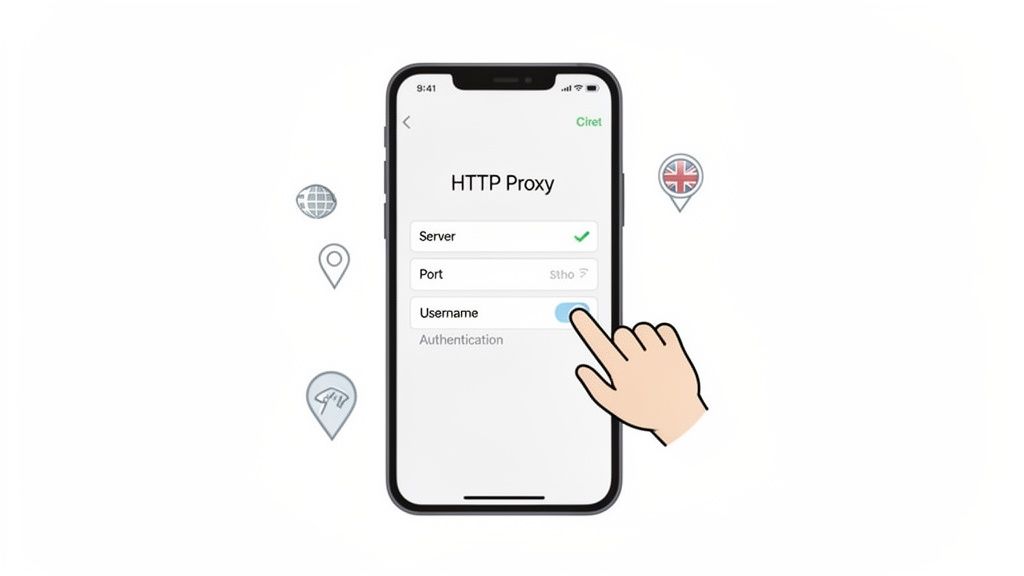
Once you're in the HTTP PROXY area, tap on Configure Proxy. You'll see three choices: Off, Manual, and Automatic. We're going with Manual.
Selecting this option opens up the fields where you'll enter your proxy credentials. This is exactly what you should see on your screen:
The interface is simple and asks for three key pieces of information. Here’s a quick rundown of what goes where:
- Server: This is the IP address or hostname from your proxy provider. For example, it might look something like
uk.proxypurpose.io. - Port: Type in the port number they gave you. It’s usually a four or five-digit number, like
8080or31112. - Authentication: Flip this switch on if your proxy requires a login—which any good, secure service like ProxyPurpose will. This will bring up fields for your Username and Password.
My Two Cents: Accuracy is everything. A single typo in the server, port, or login info is the number one reason proxy connections fail. I always recommend copying and pasting these details directly from your provider's dashboard to sidestep any frustrating mistakes.
After you've triple-checked everything, tap Save in the top-right corner. That's it! Your iPhone will now route all internet traffic through that proxy, but only when you're connected to that specific Wi-Fi network.
Keep in mind that this setup is tied to one network. If you switch to a different Wi-Fi, the proxy won't be active. To get a better handle on different proxy applications, check out our guide on how to use proxies for a broader perspective. This manual method gives you a solid, reliable way to manage your digital footprint for all kinds of professional tasks.
Automating Your Connection with a PAC File
While setting up a proxy manually on a single Wi-Fi network gets the job done, it's not exactly elegant. If you’re constantly toggling it on and off as you switch between networks or tasks, it quickly becomes a pain. This is where a Proxy Auto-Configuration (PAC) file comes in, offering a much smarter, more dynamic way to manage a proxy server on your iPhone.
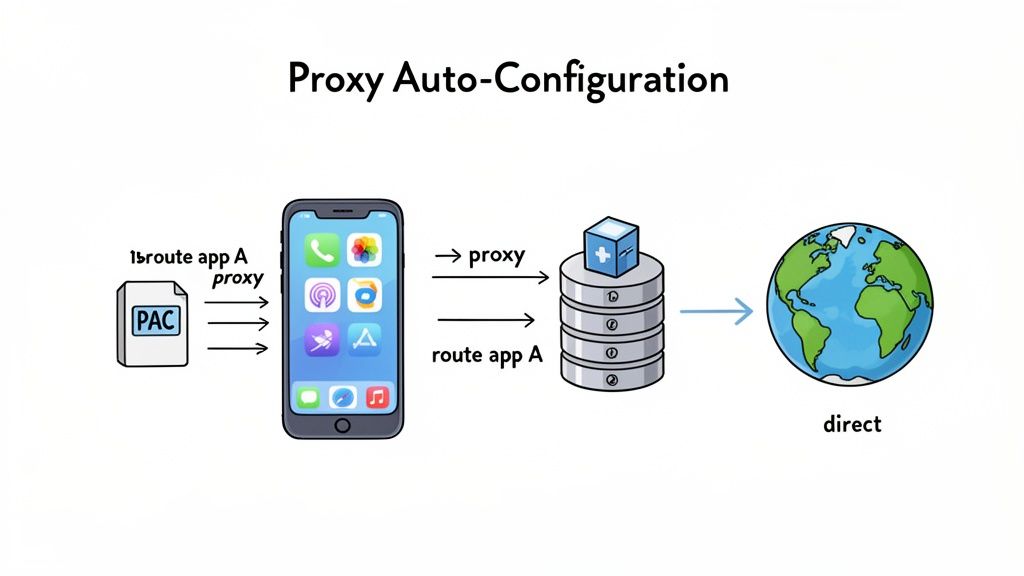
Think of a PAC file as a simple set of instructions for your iPhone's internet traffic. Instead of blindly pushing all your data through the proxy, the PAC file lays out rules that tell your phone precisely when to use the proxy and when to connect directly. It's a "set it and forget it" approach that’s a real game-changer for professional workflows.
How a PAC File Works
At its core, a PAC file is just a small JavaScript file that lives on a web server. When you point your iPhone to it, the device fetches this file and follows the rules inside before making any web request. And those rules can be surprisingly powerful.
For instance, a media buyer could use a PAC file with rules like this:
- If a URL contains “ad-network-analytics.com,” send that traffic through the London proxy.
- If the destination is “internal-company-portal.net,” route it through the New York proxy.
- For everything else (like checking social media or reading the news), connect directly.
This kind of intelligent routing happens automatically, behind the scenes, with zero manual effort. It guarantees your business-critical traffic always goes through the right proxy, while your personal browsing stays fast and unaffected. It's an incredibly efficient way to manage split traffic.
Finding and Configuring Your PAC URL
Getting started with a PAC file is just as simple as the manual method. You'll navigate to the same spot: Settings > Wi-Fi, then tap the little "i" icon next to your network, and scroll down to Configure Proxy.
This time, instead of "Manual," you'll choose Automatic. A single field labeled "URL" will appear. This is where you paste the link to your PAC file, which you’ll get from your proxy provider. If you're a ProxyPurpose customer, for example, you can find this URL right in your account dashboard.
A common pitfall is trying to download the PAC file and link to it locally on your iPhone. That won’t work. The URL has to be a live web address (starting with http:// or https://) that your phone can access to fetch the rules.
Once you’ve pasted the URL, just hit Save. That’s it. Your iPhone will now use these rules to manage its connection on that specific Wi-Fi network. It's a tiny change that adds a huge amount of flexibility and automation, letting you focus on your actual work—like ad verification or market analysis—instead of constantly messing with your settings.
Using Third-Party Apps for Total Proxy Control
While Apple’s built-in iOS settings give you a starting point, they come with one massive catch: they only work over Wi-Fi. For anyone who needs a consistent proxy connection while on the move, that’s a complete deal-breaker. To really harness the power of a proxy server on your iPhone, you'll need to head over to the App Store.
Think of these specialized apps as a central command for your internet traffic. They provide a level of granular control that iOS just doesn't offer out of the box. Their single biggest win? The ability to route both Wi-Fi and cellular (4G/5G) data through your proxy. This is non-negotiable for a media buyer verifying ad campaigns from the back of a rideshare or a market analyst gathering data from a coffee shop.
Why an App Is Often the Best Choice
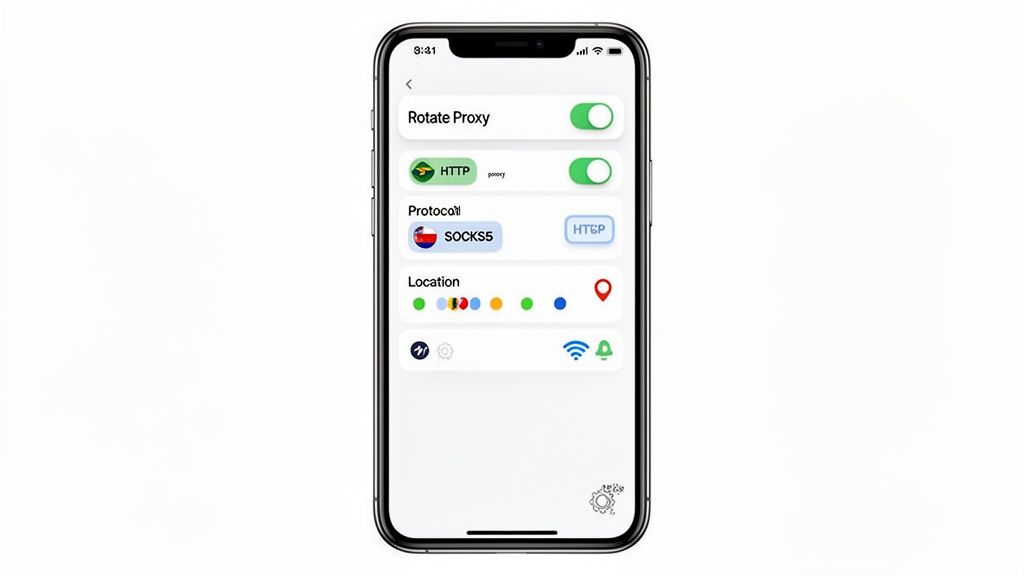
Beyond just working over cellular, a dedicated proxy app is packed with advanced features that make professional workflows much smoother. Forget about manually punching in server details every time you switch networks. With an app, you can manage entire lists of proxies, jump between them with a tap, and even set up automatic rotation.
Imagine you're an affiliate marketer who needs to check landing pages from a dozen different countries within an hour. Trying to do that with the native iOS settings would be painfully slow and just plain impractical. A good third-party app makes this a breeze, letting you cycle through German, Japanese, and Australian residential IPs in seconds.
Here’s what I always look for in a top-tier proxy management app:
- Cellular Data Support: This is the absolute must-have. It means your proxy works anywhere you have a mobile signal.
- Multiple Protocol Support: A solid app should handle both HTTP(S) and SOCKS5 proxies, giving you the flexibility to route all kinds of traffic correctly.
- Easy Proxy Rotation: The ability to quickly swap between different IPs from a pre-loaded list is crucial for any task involving multiple geo-locations.
- Rule-Based Routing: The really powerful apps let you create rules that automatically send traffic from specific apps or to certain websites through the proxy, while everything else connects directly.
iOS Native Proxy vs Third-Party App Features
The difference in capability is stark. Here’s a head-to-head comparison to help you decide whether the built-in iOS proxy settings are enough for you or if it's time to invest in a dedicated app for more advanced features.
| Feature | iOS Native Wi-Fi Proxy | Third-Party Proxy App |
|---|---|---|
| Network Support | Wi-Fi Only | Wi-Fi & Cellular |
| Proxy Management | Single proxy per network | Manage multiple proxy lists |
| Protocol Support | HTTP(S) Only | HTTP(S) and SOCKS5 |
| Ease of Switching | Requires deep menu navigation | One-tap switching |
| Automation | None | Rotation & rule-based routing |
Ultimately, while the native method is fine for occasional, static use on a single trusted network, a third-party app is purpose-built for dynamic, professional workflows.
Pro Tip: When you set up one of these apps, it will likely ask for permission to add a VPN configuration to your iPhone. Don't be alarmed! This is the clever trick they use to route all your device's traffic—including cellular—through the proxy. It creates a local "VPN tunnel" on your phone that simply directs data to your proxy, not to an actual VPN provider's server.
Popular and Reputable Proxy Apps
The App Store has several excellent options for managing proxy connections. Apps like Shadowrocket and Potatso Lite are favorites among technical users because of their deep feature sets and reliability. They let you import entire lists of proxies, configure complex routing rules, and even monitor your traffic in real time.
For most professionals, the small, one-time fee for a paid app pays for itself almost immediately in time saved and new capabilities unlocked. It transforms your iPhone from a simple communication device into a sophisticated tool for global market analysis and ad verification. The ability to seamlessly manage a proxy server on your iPhone over any connection gives you a serious edge, ensuring you get accurate, location-specific data whenever and wherever you need it.
Best Practices for Using Mobile Proxies
Connecting a proxy server on your iPhone is one thing, but using it effectively for professional work is a whole different ballgame. The technical setup is just the start. To get the reliable results you’re paying for, you need to adopt smart habits that protect your data and prevent costly mistakes.
These are the practices that separate the pros from the amateurs.
Here's a simple, non-negotiable step to take every single time you enable your proxy: verify your IP address. Just open Safari and search "what is my IP address." This quick check confirms that your connection is active and that you aren't accidentally exposing your real IP. It takes seconds but can save you from major headaches.
Prioritize Security and IP Quality
The difference between free and paid proxies isn't just about speed—it's a massive security issue. Free proxies are notoriously slow and unreliable, but worse, they can be outright malicious. Some are known to monitor traffic or inject ads. For any kind of business-critical task, using a trusted, paid service is the only way to go.
When you’re integrating proxies into your mobile setup, the source of that proxy is everything. Taking the time to explore the best residential proxy providers will pay off in reliability and performance. This is where dedicated residential IPs, like those from ProxyPurpose, really shine. Since these IPs come from real user devices, they carry a high trust score, which drastically reduces your chances of getting flagged or blacklisted.
Key Insight: Using a cheap datacenter proxy for something like ad verification is a classic false economy. You might save a few dollars upfront, but you'll lose much more in skewed data and blocked access when platforms easily detect and deny your connection.
The need for these best practices is growing. In 2023, mobile proxies accounted for about 17% of all proxy traffic, and the use of 4G and 5G proxies shot up by 37% in just one year. Professionals rely on these connections for everything from app testing to ad verification, making secure and smart management more critical than ever. You can dig into more of this data in this detailed report.
Manage Battery and Connection Stability
Let's be realistic: running a third-party proxy app on your iPhone is going to use more battery. These apps often maintain a constant background connection, which can be a noticeable drain. A good habit is to activate the proxy only when you actually need it.
Here are a few practical tips I've learned to keep things running smoothly:
- Toggle Off When Idle: Not actively verifying an ad or collecting data? Turn the proxy connection off in your app to save power.
- Use Wi-Fi When Possible: Cellular data can be less stable than Wi-Fi, which can cause your proxy to drop at the worst possible time. A stable connection is key for uninterrupted work.
- Check Your App Settings: Some of the better proxy apps have power-saving modes or options to auto-disconnect after a period of inactivity. It's worth exploring the settings to see what you can optimize.
Finally, always be mindful of what data you’re sending through the proxy. I strongly advise against logging into personal accounts like banking or email while connected, unless you have absolute trust in your provider’s security and privacy policies. By making these habits second nature, you can use a proxy server on your iPhone safely and turn your phone into a powerful tool for your work.
Common Questions About iPhone Proxy Setups
Even with a perfect guide, setting up a proxy server on your iPhone can throw a curveball or two. You're dealing with technical details, and sometimes things just don't behave as expected. This section is all about tackling those common hurdles head-on, giving you straight answers to the most frequent questions we hear.
Think of this as your go-to troubleshooting resource. My goal is to help you sidestep common frustrations and make your proxy experience as seamless as possible.
Can I Use a Proxy on My iPhone with Cellular Data?
This is probably the number one question people ask, and the answer isn't a simple yes or no. iOS, by design, is a bit restrictive here. The built-in settings only let you configure a proxy for a specific Wi-Fi connection. You won't find an option anywhere to route your cellular (4G/5G) data through a proxy server natively.
The workaround? You'll need to use a third-party app from the App Store. Reputable proxy or VPN manager apps get around this iOS limitation by creating a local VPN profile on your iPhone. This profile acts as a tunnel, directing all of your device's traffic—including your cellular data—through the proxy you've configured in the app. It's the standard method for professionals who need a consistent proxy connection, no matter where they are.
What's the Difference Between HTTP and SOCKS5 Proxies?
Knowing the difference between proxy types is key to choosing the right tool for your task. The two you'll run into most often are HTTP and SOCKS5.
An HTTP proxy is built specifically for web traffic—anything using the HTTP and HTTPS protocols. This makes it the perfect fit for the vast majority of mobile proxy uses, like:
- Scraping product data from e-commerce sites.
- Checking search engine results from different locations.
- Accessing geo-restricted websites.
- Verifying mobile ad campaigns in a browser.
A SOCKS5 proxy, on the other hand, is a jack-of-all-trades. It works at a lower level of your network connection and can handle traffic from pretty much any application or protocol. This means it can route data from email clients, games, or other specialized apps that aren't just a web browser.
For most people setting up a proxy server on iPhone for browsing or ad verification, an HTTP proxy is all you need and is simpler to get running. If you have a specific, non-browser app that needs its traffic rerouted, a SOCKS5 proxy (set up through a third-party app) is the way to go.
My iPhone Proxy Isn't Working. What Should I Do?
It's incredibly frustrating when a connection fails, but the fix is almost always something simple. Before you start pulling your hair out, run through this quick checklist. These are the most common culprits.
- Double-Check Your Credentials: A single typo in the server address, port, username, or password is the top reason for connection errors. Seriously, re-enter everything carefully. Better yet, copy and paste it directly from your proxy provider's dashboard.
- Verify Your Wi-Fi Network: Remember, the manual proxy setup in iOS is tied to a specific Wi-Fi network. Make sure you’re connected to the exact one you configured it for.
- Confirm the Proxy is Active: Log into your provider’s dashboard and check the status of your proxy. Is the server online? Is your subscription active? Sometimes servers go down for a moment for maintenance.
- Check IP Whitelisting: If your provider uses IP whitelisting for authentication, make sure your current public IP address is authorized in their system. Your IP can change, especially if you're on the move.
If you’ve tried all that and are still stuck, try toggling your Wi-Fi off and on to reset the connection. If that doesn't do the trick, it's time to reach out to your provider's support team. They can diagnose server-side issues that you can't see, like a network administrator blocking traffic, which could be causing timeout errors even with perfect settings.
Is It Safe to Use a Free Proxy Server on My iPhone?
The idea of "free" is always tempting, but using a free proxy server on your iPhone is a huge gamble, especially for anything important or sensitive. The risks just aren't worth the savings.
Free proxies are notoriously unreliable. They're often painfully slow, overloaded with users, and have terrible uptime, which can bring any critical task to a grinding halt. Even worse are the massive security threats they pose. The people running free proxies have no incentive to protect your privacy. In fact, you're the product. They might:
- Monitor and log your activity, then sell your browsing data to the highest bidder.
- Inject their own ads or even malicious scripts into the websites you visit.
- Steal sensitive information, like login credentials, financial details, or personal data.
For any professional work—media buying, ad verification, market research—a paid proxy service from a reputable provider is non-negotiable. You're paying for clean, dedicated residential IPs, guaranteed uptime, strong security, and customer support when you need it. This investment ensures your work runs smoothly and your data stays private. Using low-quality proxies can also lead to other problems, which our guide on how to get around an IP ban explains in more detail.
Ready to stop worrying about unreliable connections and blacklisted IPs? ProxyPurpose provides dedicated, clean residential IPs purpose-built for media buying and data collection. See how our intelligent routing and 99.9% uptime can accelerate your mobile workflows by visiting https://proxypurpose.io.