Proxy Server for Chrome: Quick Setup Guide to Secure Browsing (proxy server for chrome)
Discover how to quickly set up a proxy server for chrome with practical steps, extensions, and essential security tips.
If you've ever tried to run a serious business task through a free proxy, you probably know the frustration all too well. It's a recipe for disaster. These public proxies are almost always slow, unreliable, and already blacklisted on most platforms that matter.
For anyone in media buying or data analysis, this isn't just a minor headache—it's a critical failure that can completely derail a campaign and poison your data.
Why a Dedicated Proxy Matters
This is where a dedicated proxy server, especially one loaded with high-quality residential IPs, completely changes the game. Instead of sharing a sluggish, overworked IP with thousands of other people, you get exclusive access to clean, reputable addresses that belong to real internet service providers.
The result? Your connection looks completely organic to any website or ad platform you're interacting with. It's the difference between blending in and sticking out like a sore thumb.
The Problem with Shared and Free Proxies
Let's be blunt: free and shared proxies are a terrible idea for professional work. Think of a free proxy like a crowded public bus—it’s slow, unpredictable, and you have no idea who you're sharing the ride with.
Here’s a taste of what you're signing up for:
- Constant IP Blocks: These IPs are easily flagged by even basic detection systems, which means your work grinds to a halt.
- Useless Geotargeting: The location data tied to free proxies is often flat-out wrong, making them worthless for verifying region-specific ad campaigns.
- Major Security Risks: Many free services log your activity. Worse, some are run by malicious actors just waiting to steal your data.
It all comes down to trust. Websites and ad networks have gotten incredibly good at sniffing out and blocking low-quality proxy traffic. A dedicated residential proxy is your way to sidestep those defenses by looking like any other legitimate user.
The Power of Residential IPs
For any task that demands a high level of trust and anonymity, residential IPs are the gold standard. Period. Since these IP addresses are assigned to actual homes by real ISPs, they carry a high reputation score that’s nearly impossible to fake.
This makes your traffic indistinguishable from that of a genuine visitor, which is precisely what you need for accurate ad verification or pulling clean data. This isn't just a niche need, either. The global Proxy Server Service Market is on track to hit USD 2.04 billion by 2035, a clear sign that more professionals are demanding secure, anonymous connections. You can get a deeper look at this trend in this report on proxy service adoption.
Choosing the Right Way to Configure a Chrome Proxy
Deciding how to set up a proxy in Chrome isn’t just a technical step; it's about matching the right tool to the job. The best approach really depends on what you’re trying to accomplish. Are you just doing a quick one-off task, or are you running complex data operations that require strict routing rules? Each method offers a different mix of convenience, control, and power.
Ultimately, it’s a trade-off. You're balancing how easy it is to get started against how much fine-grained control you need over your connection. For most folks doing things like ad verification, web scraping, or managing social media accounts, a good Chrome extension hits that sweet spot perfectly.
The 4 Main Ways to Set Up a Chrome Proxy
There are really four common ways to get a proxy working with Chrome, and each one shines in different scenarios. Think of it like this: a browser extension is great for switching geolocations on the fly, right from your toolbar. On the other hand, changing your system-wide settings will route everything on your computer through the proxy, which might be overkill.
Here’s a quick rundown of your options:
- System (OS) Settings: This is the most basic approach. You configure the proxy in your computer's network settings (Windows or macOS), and all your internet traffic—not just Chrome—gets routed through it. It's simple, but you lose the ability to easily switch proxies or turn it off for specific tasks.
- Chrome Extensions: This is hands-down the most popular and flexible method for most users. Extensions live right inside your browser, giving you a simple interface to switch IPs, manage lists of proxies, and handle authentication without ever leaving Chrome.
- Proxy Auto-Config (PAC) Files: This is more of an enterprise-level solution. A PAC file is a small script that tells your browser which proxy to use based on the URL you're visiting. It's fantastic for automating complex routing rules in a corporate environment but requires a bit of technical know-how to set up.
- Command-Line Flags: This is strictly for the developers and automation engineers out there. You can launch an instance of Chrome from the command line with a flag that forces it to use a specific proxy. It’s perfect for automated testing scripts but completely impractical for everyday browsing.
It's no surprise that extensions are the go-to choice. With Chrome holding a massive 67.72% of the global browser market, it’s the primary playground for developers building these powerful tools for its 3.83 billion users. You can dig into more of this data in a detailed user report from Backlinko.
Before you even get to the configuration method, you need to decide what kind of proxy you need. This decision tree can help you figure out if a free or dedicated proxy is the right place to start.
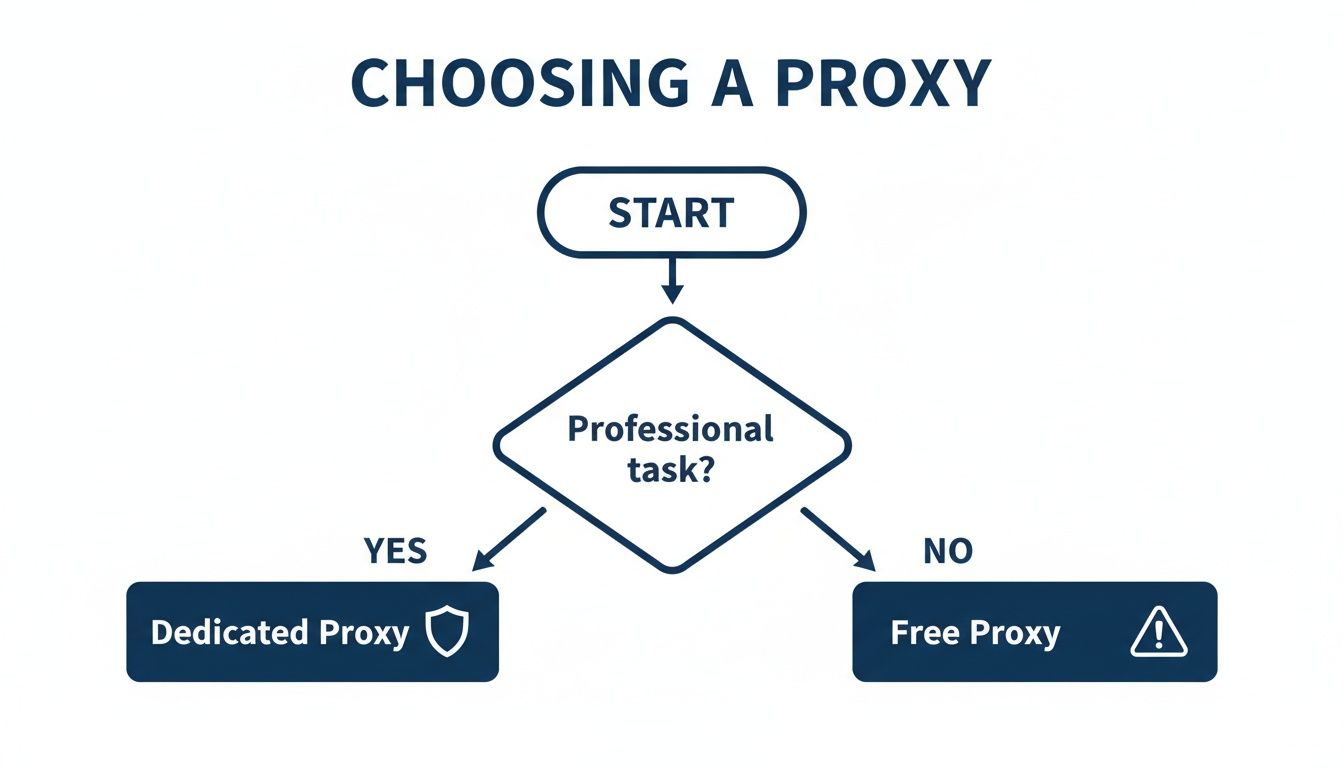
As you can see, any serious professional work that depends on reliability and security points straight to a dedicated proxy. It’s the only way to avoid the performance bottlenecks and security risks that come with free, public options.
Comparing Chrome Proxy Configuration Methods
To make the choice even clearer, let's break down the pros and cons of each method side-by-side.
| Method | Best For | Ease of Use | Flexibility |
|---|---|---|---|
| System Settings | Simple, all-traffic routing where you "set it and forget it." | Easy | Low |
| Browser Extension | Most users, especially for media buying, ad verification, and data gathering. | Very Easy | High |
| PAC File | Corporate environments needing automated, rule-based proxy routing. | Moderate | High (with scripting) |
| Command-Line Flags | Developers, for automated testing and specific scripting scenarios. | Difficult (for non-devs) | Low (for general use) |
This table makes it pretty clear why extensions are the winner for most professional use cases. They keep your proxy activity contained within the browser and make managing different IP profiles incredibly straightforward.
My Takeaway: For nearly any professional task—from checking ad placements to gathering market data—a browser extension is the most practical and efficient way to go. You get the power you need without the headache.
And if you happen to be on a different operating system, the setup can vary. We have a separate guide on how to set up a proxy on a Chromebook that covers the unique steps for that platform. But for the vast majority of desktop users, a solid extension is your quickest path to getting up and running.
How to Configure a Proxy With a Chrome Extension
If you're looking for the most direct and flexible way to manage a proxy in Chrome, a browser extension is the way to go. Forget digging around in your operating system's network settings. An extension keeps everything contained right inside the browser, making it incredibly simple to turn proxies on and off, switch between different locations, or enter new credentials.
The real beauty of this method is the control it gives you. You can have one Chrome window running a proxy to check ad placements in Germany while browsing normally in another. For anyone juggling multiple geolocations for tasks like media buying or market research, this kind of granular control isn't just a nice-to-have—it's essential.
Finding and Installing a Reliable Extension
First things first, you'll need to head over to the Chrome Web Store. It's filled with proxy managers, but be careful what you choose. A shoddy extension can be slow, unreliable, or even a security risk. I always look for extensions with a high number of positive ratings, a large user base, and a recent update history. Those are usually good signs that the tool is actively maintained.
Once you’ve picked one, getting it installed is a breeze.
- Just click the "Add to Chrome" button on its store page.
- You'll see a pop-up asking for permissions. Give them a quick review and click "Add extension."
- Its icon should now appear in your toolbar. Sometimes you have to click the little puzzle piece icon first to find and "pin" it for easy access.
The key is to stick with well-known, reputable extensions built specifically for proxy management. This helps you steer clear of potential security headaches down the road.
Entering Your Proxy Credentials
With your new extension installed, it's time to plug in your proxy details. This is the information you get from your provider, like ProxyPurpose. You'll typically have a host (or IP address), a port number, and a username/password combination.
Click the extension's icon in your toolbar, and its management panel will pop up. You'll see input fields waiting for your proxy info.
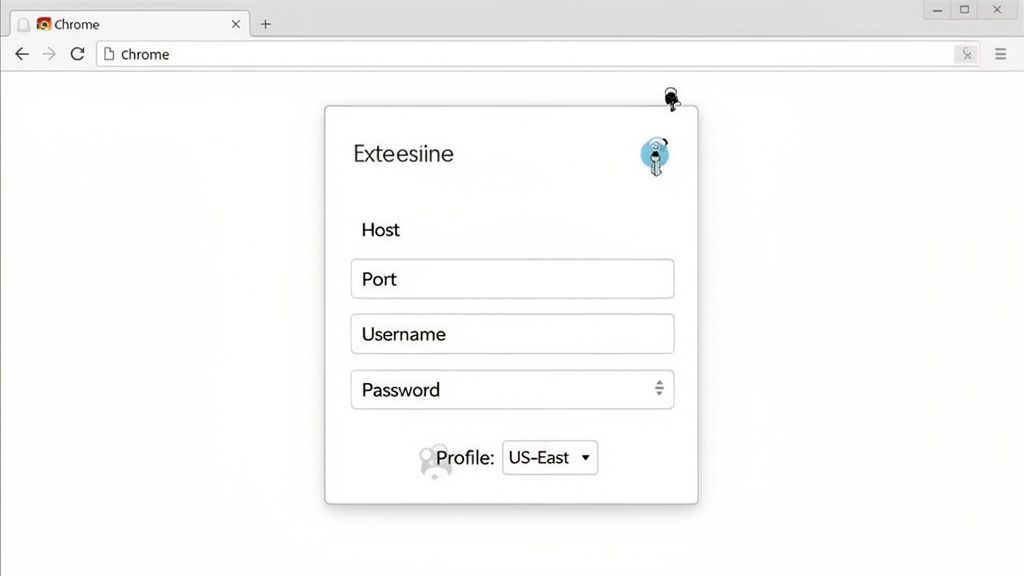
Let's walk through it with a typical set of residential IP credentials.
- Host/IP Address:
us-east.proxypurpose.io - Port:
8080 - Username:
your_username - Password:
your_password
You just copy and paste these details into the right spots. Most extensions will also ask you to choose a protocol, usually giving you the option between HTTP/S and SOCKS5. For nearly all web-based activities in Chrome—like ad verification, web scraping, or social media management—HTTP/S is the standard and works perfectly.
Pro Tip: Look for an extension with a profile management feature. Instead of manually typing credentials every time you switch locations, you can save them. I keep profiles like "US-East-Residential" and "UK-London-Datacenter" saved, which lets me swap between them with a single click. It's a huge time-saver.
This straightforward setup is what makes using a proxy server for Chrome so powerful. It removes the technical hurdles, letting you focus on your work instead of wrestling with network settings. Once you save and activate the profile, all traffic from that Chrome browser is instantly routed through your new IP.
Securing and Optimizing Your Proxy Connection
<iframe width="100%" style="aspect-ratio: 16 / 9;" src="https://www.youtube.com/embed/YIufkbmcyA0" frameborder="0" allow="autoplay; encrypted-media" allowfullscreen></iframe>Getting your proxy server for Chrome connected is just the first step. Now, the real work begins: locking down your connection to make sure it’s not leaking data that could expose your real identity and sink your entire project. Frankly, a leaky proxy is almost as bad as using no proxy at all.
One of the most notorious culprits is WebRTC. It’s a protocol that lets browsers communicate directly for things like video chats, but it has a nasty habit of broadcasting your actual IP address, completely sidestepping your proxy. For anyone doing serious media buying or ad verification, a WebRTC leak isn't just a mistake—it's a critical failure that can get your accounts shut down in a heartbeat.
Preventing Common Data Leaks
The good news is that you can shut down WebRTC in Chrome pretty easily. There are a handful of great Chrome extensions built specifically to block these requests and plug that security hole for good. Once you install one, it just runs quietly in the background, keeping your true IP under wraps.
Another major headache is the dreaded DNS leak. This happens when your browser, despite using a proxy, still sends its DNS queries out through your regular internet provider. This basically tells websites where you're really connecting from, even if your IP address says you're halfway across the world.
A secure connection is more than just a masked IP address. It's about ensuring every piece of data your browser sends—from DNS requests to WebRTC pings—is funneled through the proxy. Anything less leaves you exposed.
You absolutely have to check for these vulnerabilities. Use an online tool that specifically tests for WebRTC and DNS leaks. Running these checks right after you configure your proxy isn't optional; it's a mandatory step for any professional who values their work.
Handling Authentication Safely
How you handle your proxy username and password is just as critical as preventing leaks. I've seen too many people store their credentials in a plain text file on their desktop or hardcode them directly into a script. That's just asking for trouble. If that file or script gets into the wrong hands, your proxy access is gone.
A much smarter way to operate is by using a trusted password manager or relying on the built-in credential managers found in reputable proxy extensions. These tools encrypt your login details, giving you an essential layer of security.
If you're looking for a deeper dive, we cover this and more in our complete guide on how to use proxies securely and effectively.
The Role of Advanced Filtering
Trying to manually plug every single potential leak can become a full-time job, especially when you're juggling multiple accounts or running large-scale operations. It's easy for something to slip through the cracks. This is exactly where advanced filtering tech, like our own Shield Protection at ProxyPurpose, really shines.
These systems are built to take care of these security headaches for you at the network level, long before the traffic ever gets to your browser.
- DNS Leak Prevention: It automatically forces all DNS requests through the proxy network, so there's zero chance of an accidental leak.
- Fingerprint Obfuscation: It actively identifies and blocks scripts that try to profile your device based on its unique browser and hardware signatures.
- WebRTC Blocking: It neutralizes WebRTC requests from the get-go, meaning you don’t have to depend on a browser extension as your only line of defense.
When you offload these critical security tasks to an intelligent proxy network, you free yourself up to focus on what you do best—whether that's verifying ad placements or gathering market data—knowing your anonymity is completely buttoned up.
Putting Your Proxies to Work in Ad Verification and Media Buying
Alright, so you’ve got your Chrome proxy configured, secured, and running smoothly. Now for the fun part: putting it to work where it can really move the needle. If you're in media buying or ad verification, a solid proxy isn't just a nice-to-have tool; it's a core part of your daily workflow. Honestly, trying to do this job without one is like flying blind.
Think about it. You're launching a campaign that’s supposed to hit users in Tokyo. How do you know for sure your ads are showing up with the right creative and in the right language? You can't just guess. A proxy lets you instantly grab a Japanese residential IP, so you can see your campaign through the eyes of a local user. This one simple check can save you from wasting a ton of money and keep your campaigns on track.
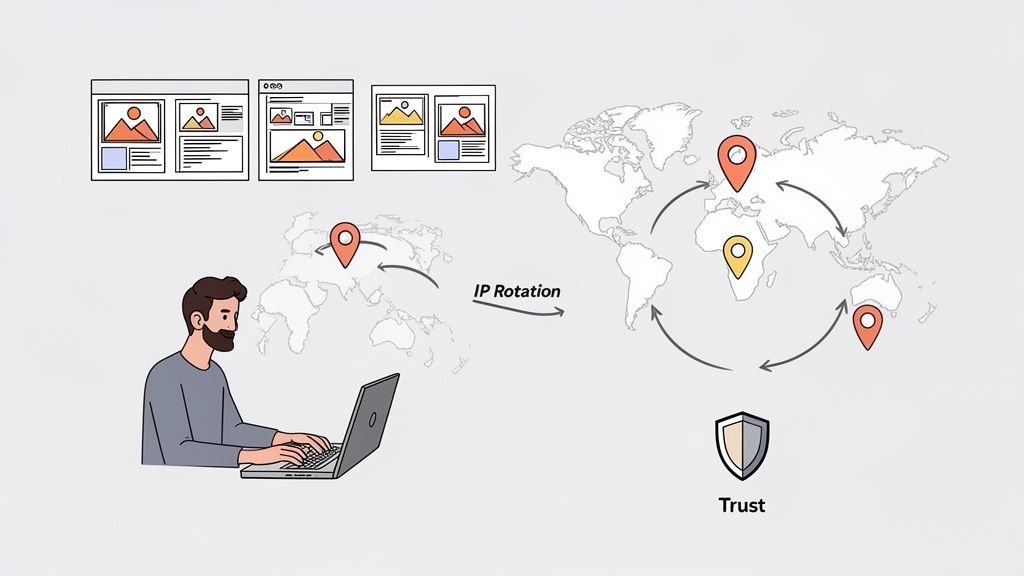
This is absolutely crucial for verifying ad placements, making sure your landing pages are compliant in different countries, and snooping on what your competitors are up to without getting blocked. Using a clean residential IP address keeps your trust score high with ad platforms, which is vital for staying under the radar and getting accurate data.
Day-to-Day Use Cases for Ad Teams
The possibilities are pretty much endless, but there are a few key tasks where a reliable proxy setup is completely non-negotiable. These are the activities where precision and unrestricted access directly impact your bottom line.
- Verifying Geo-Targeted Ads: Jump between countries, states, and even specific cities with geo-targeted proxies. This lets you confirm with your own eyes that your ads are running in the right places and are perfectly localized for each audience.
- Spying on Competitors: You need to see what the competition is doing. Browse their sites and landing pages anonymously to break down their funnels, offers, and ad copy without ever tipping them off with your company’s IP.
- Monitoring for Compliance: Keep your affiliate partners honest. Use proxies to check that they're following campaign rules and aren't getting into shady practices like cookie stuffing or placing your ads on blacklisted sites.
For example, a big part of media buying involves understanding the local search environment. You might need to track local SERPs using APIs, proxies, and automation to get a true picture. That kind of granular insight is impossible to get from your home office without a proxy.
The rule of thumb is simple: if you want authentic data, you have to look like an authentic user from your target location. A quality residential proxy is the only way to pull this off at scale.
This isn't some niche tactic anymore. To give you an idea of the scale, in 2024 alone, over 2.5 million residential and mobile IPs were being used in the Asia-Pacific region for exactly these purposes. With so many professionals living in Chrome, proxy extensions have become the go-to for managing hyper-targeted campaigns.
By rotating through different clean IPs for each task, you avoid creating a predictable footprint and can maintain separate, untraceable profiles for every campaign. If you want to dive deeper into more advanced techniques, our guide on https://proxypurpose.io/blogs/proxy-ip-rotation is a great place to start. Adopting this approach is fundamental to scaling your operations with confidence.
Common Questions About Using Chrome Proxies
Even with the best instructions, you'll always run into a few questions once you start putting a proxy to work in Chrome. Let's walk through some of the most common ones that pop up, especially when you're in the middle of a critical task and need answers fast.
Can I Use a Free Proxy Server with Chrome?
Technically, yes. But should you? Absolutely not, especially for any kind of serious work.
Free proxies are a minefield. They're notoriously slow and unreliable, but the real danger is the security risk. Many are set up to log your browsing data, and some are even run by malicious actors looking to inject malware or steal your credentials.
When you're doing professional work like ad verification or data collection, performance and anonymity are everything. A premium residential proxy is the only way to go. It’s the difference between protecting your operations and leaving them wide open to attack.
How Do I Know if My Chrome Proxy Is Working Correctly?
The quickest way to check is to visit an IP-checking website like whatismyipaddress.com before and after you connect. Your IP address and location should change to whatever the proxy is. Simple.
For a more thorough check, you need to look for leaks. Specialized online tools can spot these in seconds. The two big ones to watch out for are:
- DNS Leaks: This is when your browser ignores the proxy and sends DNS requests straight to your local internet provider, giving away your general location.
- WebRTC Leaks: A classic troublemaker. The WebRTC protocol in Chrome can sometimes broadcast your real IP address, completely bypassing the proxy.
If your setup is solid, these tests will show no trace of your original IP or location. That's how you know your connection is fully routed through the proxy server.
What Is the Difference Between HTTP and SOCKS5 Proxies?
This question comes up all the time, but the distinction is actually pretty simple.
- HTTP/S Proxies: These are built for web traffic. They're perfect for almost everything you'll do in Chrome, from browsing and scraping websites to verifying ads.
- SOCKS5 Proxies: Think of these as a more general-purpose tool. They can handle any kind of internet traffic, not just web data. This makes them great for things outside the browser, like gaming or torrenting.
For virtually all tasks involving a Chrome proxy, a high-quality HTTP/S proxy is exactly what you need.
The bottom line is that for web-centric tasks, HTTP/S proxies are the right tool for the job. They are efficient, effective, and fully supported by all major proxy management extensions for Chrome.
Will Using a Proxy in Chrome Slow Down My Internet?
Because your traffic is taking an extra hop through the proxy server, a small increase in latency is unavoidable. But here’s the thing: with a premium provider that uses a well-engineered network and smart routing, the impact on your speed is often negligible. You might not even notice it.
In some cases, a strategically located proxy can actually find a more efficient route for your data, which can sometimes improve your connection speed. High-performance infrastructure is built from the ground up to keep latency at an absolute minimum for time-sensitive work.
Ready to stop wrestling with unreliable connections and start using proxies built for professionals? With ProxyPurpose Inc., you get access to clean, high-trust residential IPs and our advanced Shield Protection to keep your operations secure and anonymous. Join over 400 media buying agencies who trust us to deliver the performance they need.